Field manual
How it works
From a rough idea to a precision, ready-to-send AI prompt in four steps. Here is the whole process, every control, and how to get the most out of it.
The four steps
Describe what you want
Type your idea in plain words, exactly as you would say it to a colleague. Pick the platform the prompt is for (ChatGPT, Claude, Gemini, Midjourney and more) and, if it helps, a use case. No prompt-writing knowledge needed.
Answer a few smart questions (optional)
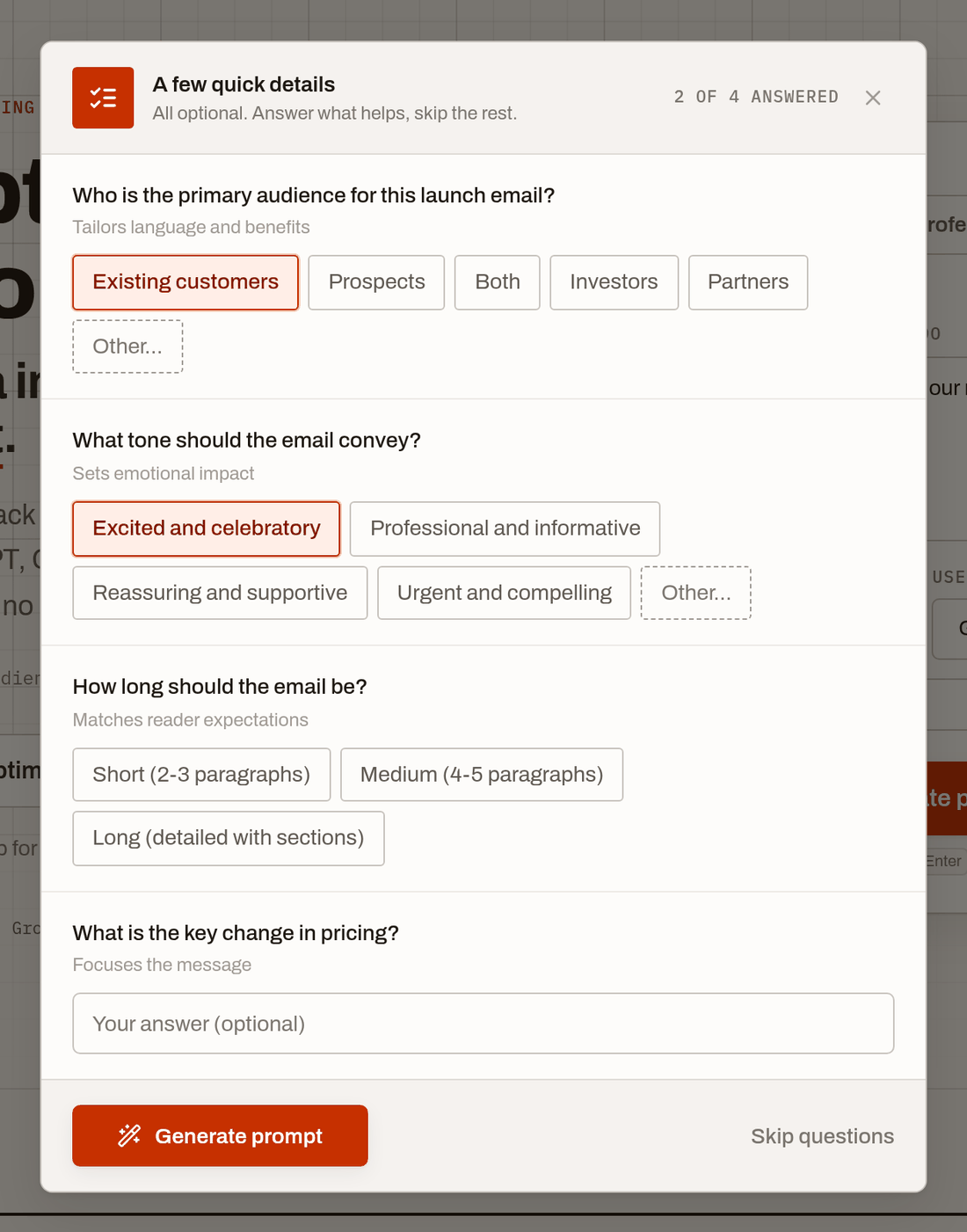
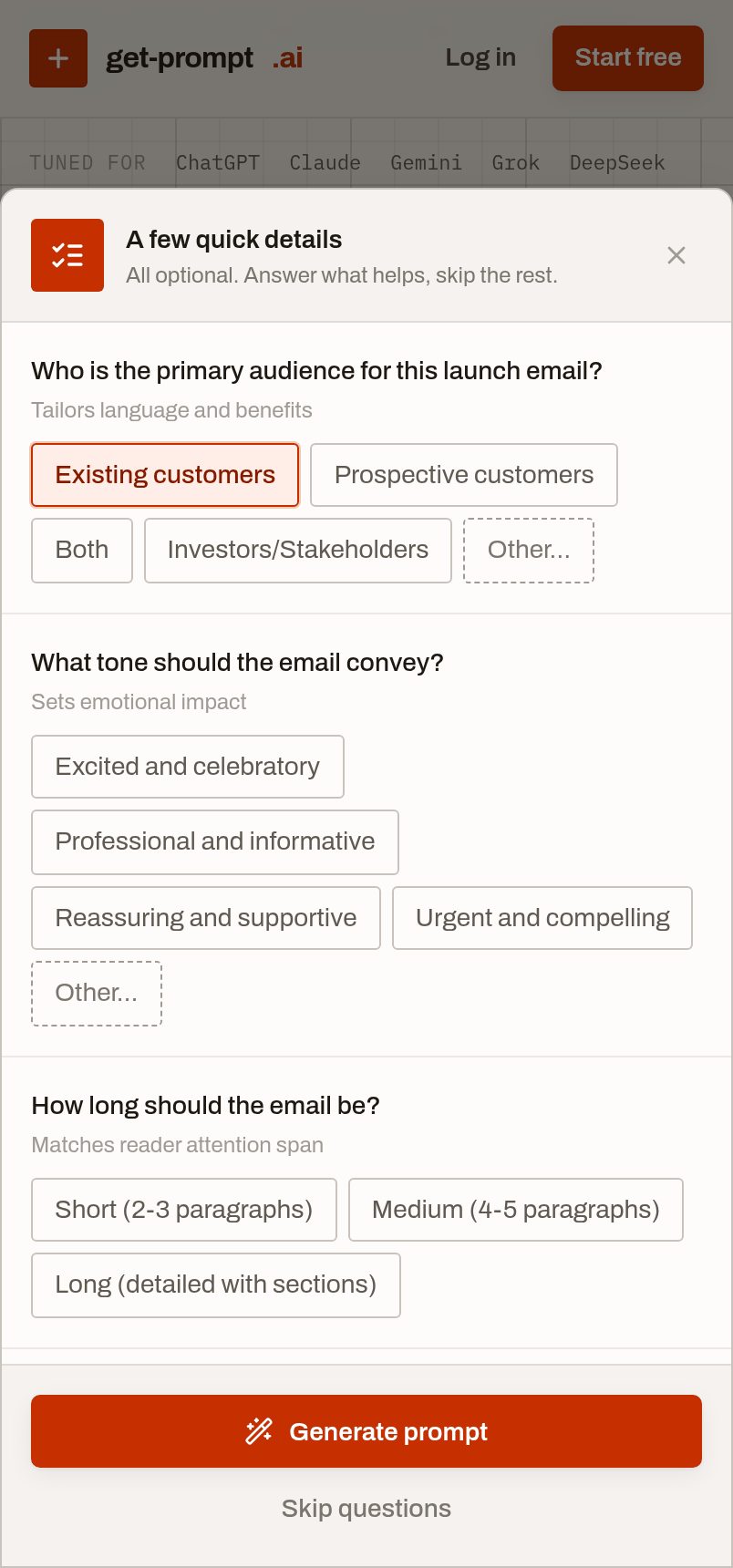
We quickly measure what a professional prompt still needs for your specific request and ask up to five short, tappable questions: audience, tone, length, format, constraints. Answer what helps and skip the rest; every question is optional and the whole step can be turned off.
Generate
A prompt-engineering layer assigns the role, structure, constraints and output format for you, tuned to the conventions of your chosen platform. The result arrives as one complete, copy-paste-ready prompt with zero placeholders.
Refine, copy and send
Edit the result in place, refine your answers and regenerate, or copy it straight into your AI tool. Copy keeps clean plain text for chats and rich formatting for documents. Pro users can save winners to their library.
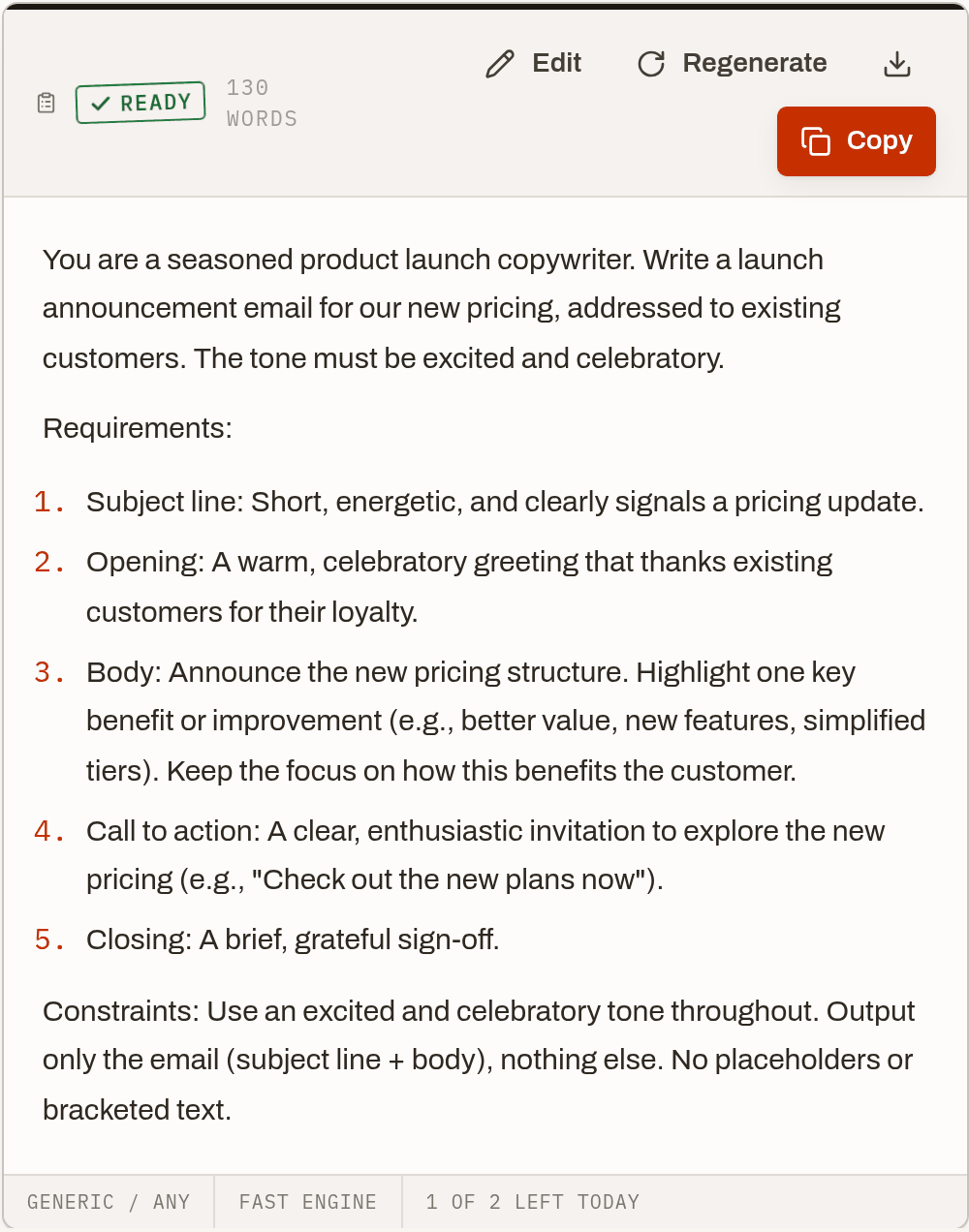
We measure what's missing, so you don't guess
Most ideas arrive missing the details a professional prompt needs. Instead of guessing, the generator checks your specific request and asks only what would genuinely improve the result.
Up to five questions, never boilerplate. Each question is written for your request: a sales email gets audience and tone; a logo gets style and what to avoid.
Tappable answers. Most questions are answered with one tap. "Other" is always available when the options do not fit.
Zero forced friction. Generate with whatever you have answered, skip the lot, or press Escape. Skipped topics get sensible professional assumptions.
Smart enough to stay quiet. Detailed requests skip the questions automatically. You can also turn the step off in Specifications, and we remember that.
Every control, and when to use it
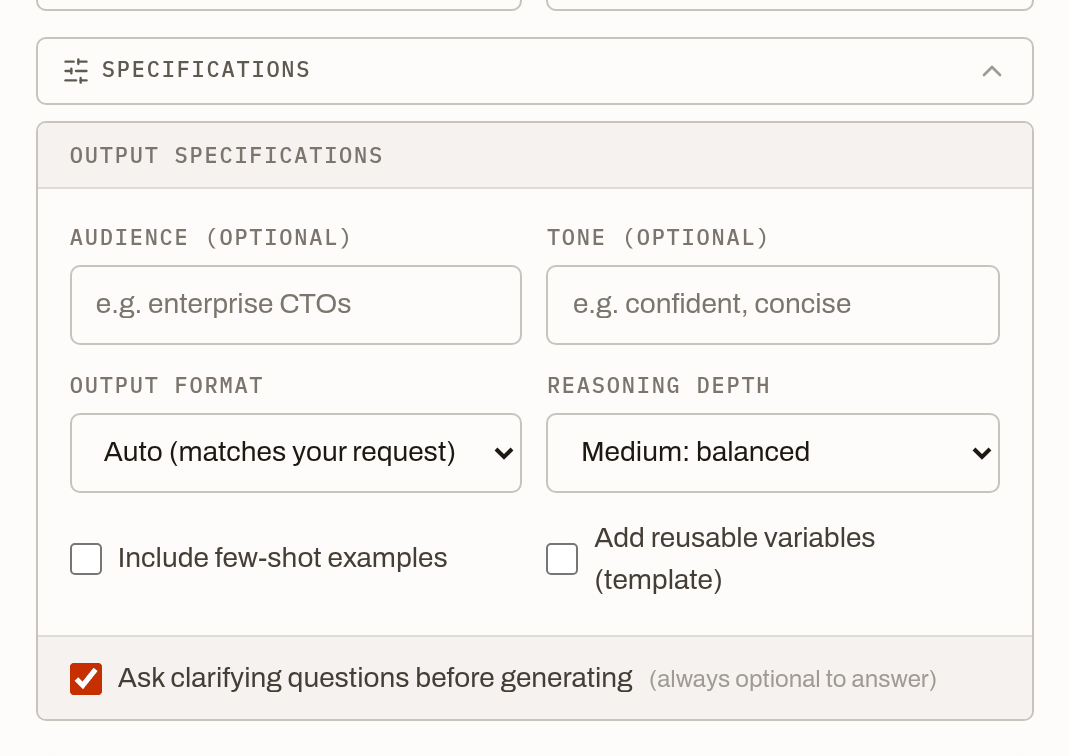
The Specifications drawer holds the optional controls. Everything defaults to Auto or off, so an untouched drawer never injects wrong constraints; set only what you actually mean.
- Audience
- Who the eventual output is written for. The single highest-impact field.
- Tone
- The voice of the output: confident, friendly, formal, playful.
- Output format
- Auto by default: the engine picks what the task needs, plain text for an email, structure for a document, a schema for data. Set it only when you need a specific shape, from Markdown to JSON to WordPress blocks.
- Reasoning depth
- Whether the prompt asks the AI to think step by step. High suits analysis and coding; low suits direct creative output.
- Examples & variables
- Embed a short example to lock the style, or add reusable {{variables}} to turn the prompt into a template.
- Clarifying questions
- The toggle for step 02. On by default; your preference is remembered.

Five habits of people who get great prompts
- 01
Give one sentence of context. "Write a cold email" is a guess; "write a cold email offering a free SEO audit to SaaS founders" is a brief. One concrete sentence changes everything.
- 02
Name the audience. If you answer only one question, answer that one. Vocabulary, depth and persuasion all follow from it.
- 03
Say where the output goes. A LinkedIn post, a client email and a documentation page want different shapes. Mention the destination and the format takes care of itself.
- 04
Pick the real platform. Prompts are tuned to each platform’s conventions. A Claude prompt is structured differently from a Midjourney one; targeting the right tool is free quality.
- 05
Refine instead of retyping. If the result is close, use Refine answers or edit the prompt in place. You keep everything that already works.
Frequently asked questions
- Do I need an account to try it?
- No. Your first prompts are free with no signup and no credit card, right on the homepage. Creating a free account raises your daily allowance, and Pro unlocks the Expert engine, unlimited Optimizer use and your saved library.
- What is the difference between the Fast and Expert engines?
- Fast is free and produces great everyday prompts in seconds. Expert is our flagship engine for Pro users: noticeably deeper, more precise prompts for work that matters. The Professional command mode (also Pro) produces higher-grade, fully self-contained prompts you can reuse.
- What happens if I skip the questions?
- Nothing breaks. We make sensible professional assumptions for anything you leave unanswered, exactly as a prompt engineer would. Detailed requests skip the questions automatically.
- Can it write image prompts too?
- Yes. Choose the Image use case or an image platform like Midjourney, GPT Image or Stable Diffusion. Style, aspect ratio, lighting and exclusions are handled in the right syntax for that tool, and the defaults pick the natural style and framing for your subject.
Want the optimizer instead? Paste an existing prompt into the Prompt Optimizer and get a sharper, restructured version. Your first optimization is free.
See it work on your own idea.
Your first prompts are free, right on the homepage. No signup, no credit card.